
Car Lab
Car Lab builds a car set: one car carried whole, with its shift lights, beacons, parameters and identity in one file. Once published, anyone can install it into their garage.
Start a car set
Choose + New ▸ Car set in My assets, or New car set on an empty workspace. To bring in a car from the plugin, use Import ▸ Car set and pick a .simdeckoscar file. Or, in the plugin's Garage, choose Edit in Studio: Studio opens with that car in Car Lab, no file needed. The plugin offers it for cars you made yourself, and while you are signed in.
The work is split into tabs: CAR, SHIFT LIGHTS, BEACONS, COCKPIT, LED COUNTS and PARAMETERS. Only Car and Shift lights are required; the rest are optional.
The car and its sims
On CAR, the Car card holds what is the same in every sim: Brand, Class and Shift LEDs on the wheel. The Sims card has one row per sim the car is in. Each row holds the Name in this sim and every Car ids entry that answers to it, such as one per livery or mod. Add a row with + Add a sim. While SimHub is running the car, Use running car fills in its id for you.
A car id can belong to only one car set. If an id is already claimed, it is marked, and Save and Publish are refused until you remove it.
The Listing card is what the Library shows: the Name, a Car photo, a Badge, a picture credit and the About line. Upload only art that is yours.
Lights, beacons and parameters
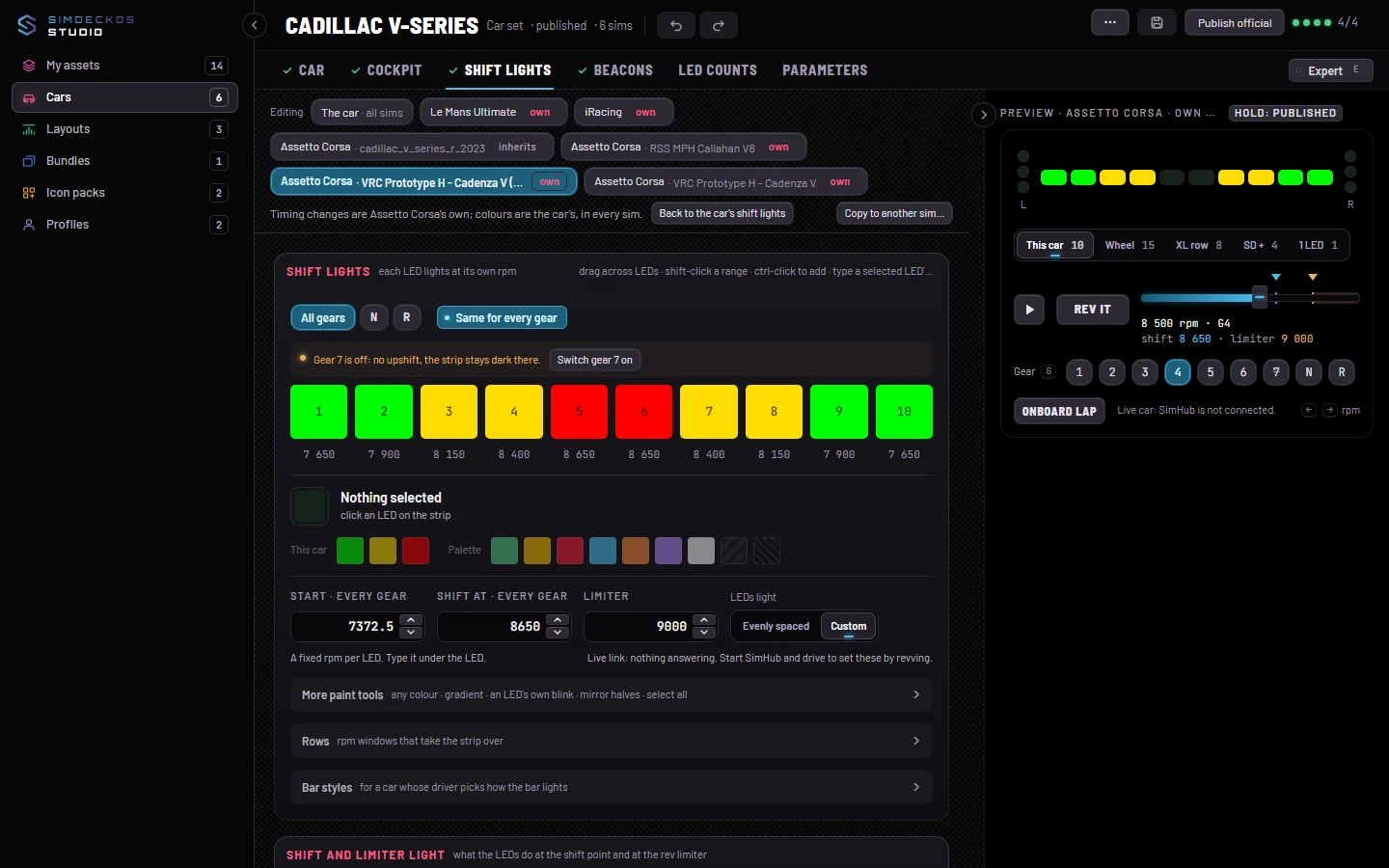
- SHIFT LIGHTS starts with Start here: the rpm the LEDs start at, the shift point and the rev limiter. Type them, or take them from the car while you rev it with SimHub running. Then paint the strip.
- BEACONS lights the side LEDs beside the screen. Start from offers ready-made rules; in the rules list, the top one wins.
- COCKPIT places LEDs around the car, on a screenshot of the cockpit.
- LED COUNTS shows how this car looks on strips with more or fewer LEDs, and lets you paint a count by hand.
- PARAMETERS sets the label, colour and range for values this car names differently, plus tyre and brake windows.
With Factory, Car Lab also has Import LED capture: it brings in what the car recorder captured, so you start from the car’s real lights.
On Shift lights, Beacons and Parameters, the Editing bar chooses between The car · all sims and one sim. A sim inherits the car until you give it its own, and Copy to another sim… copies what is on screen.
The preview and the checklist
The rail on the right draws the strip live. Press play to sweep the rpm, pick a gear (G), or use ← and → to step the rpm. While SimHub is connected, Follow the live car draws the car you are driving.
Under it, Before it can go lists what publishing needs: a name, a sim, shift points, lit LEDs, an About line and a picture credit. Every open item has Go to it. In the Library shows the card people will see.
Try it, save and publish
With the Studio live link on in the plugin (Settings ▸ Diagnostics ▸ Studio live link), two more buttons appear. Install to my garage sends the working set to SimHub as a draft, unsaved edits included. Sweep then runs the plugin's 10 second shift sweep so the wheel shows it.
- Save keeps a private draft in your assets.
- Export writes the car set to a file.
- Submit for review sends it to the Library (see Publish and review). It stays greyed out until a sim row has both a game and a car id.
Shift points read out of the game's own files never publish. Learn them by driving, or type them here.