
Getting started
Studio is the workshop in your browser. Build what the plugin wears (car settings, layouts, looks, parameters and icons), publish it to the Library, and, with Pro, see where your lap time goes.
When Studio opens
Studio opens with the SimDeckOS release. Until then it is locked: its areas say Coming soon. Notify me sends one email when it opens.
Studio runs in the browser, so there is nothing to install. It works on a desktop and on a phone or tablet, and you can add it to your home screen. The steps below are what happens once it opens.
Sign in
- When Studio opens, sign in with your SimDeckOS account: the same email and password as in the plugin. No account yet? Create one on this site and confirm your email address.
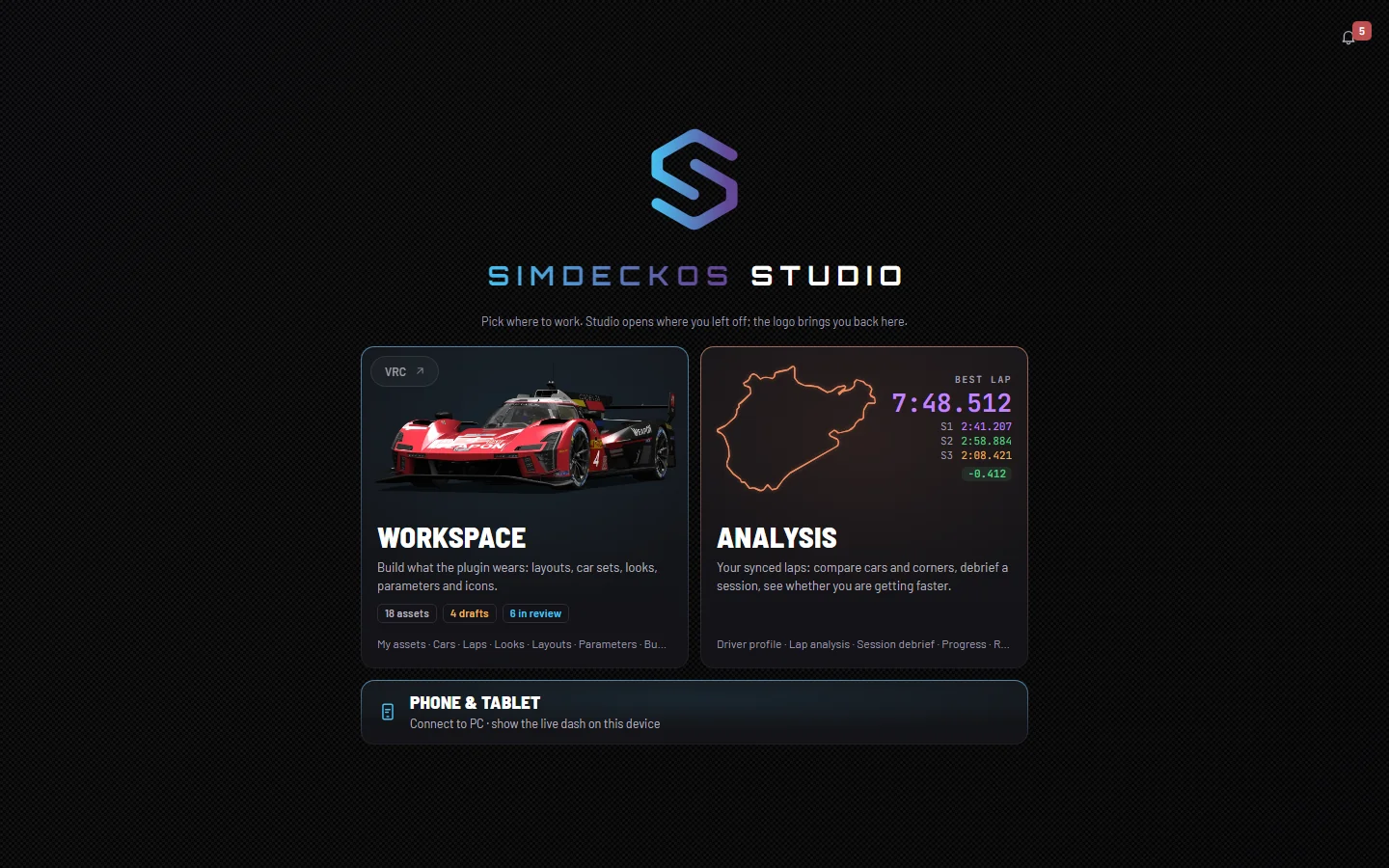
- Studio opens on its start page. Pick Workspace to build, or Analysis to read your laps. See The start page.
- Next time, Studio opens where you left off. The logo brings you back to the start page.
Free and Pro
The Workspace and the Library are free with an account. Analysis comes with Pro; on Club you can look around it first.
Club
The whole workshop, free with an account.
Free for as long as you use it
- The whole Workspace
- Car Lab and every editor
- Publish to the Library
SimDeckOS · Racing licence
Pro
Your laps, read back: where the time goes.
or €49.99/yr (€4.17/mo) · incl. VAT
- Lap analysis and Benchmarks
- Session debrief and Progress
- Driver profile
SimDeckOS · Racing licence
Factory is everything in Pro plus early-access builds, priority support and the car recorder (beta), at €6.99 a month. See every plan.
Your first build
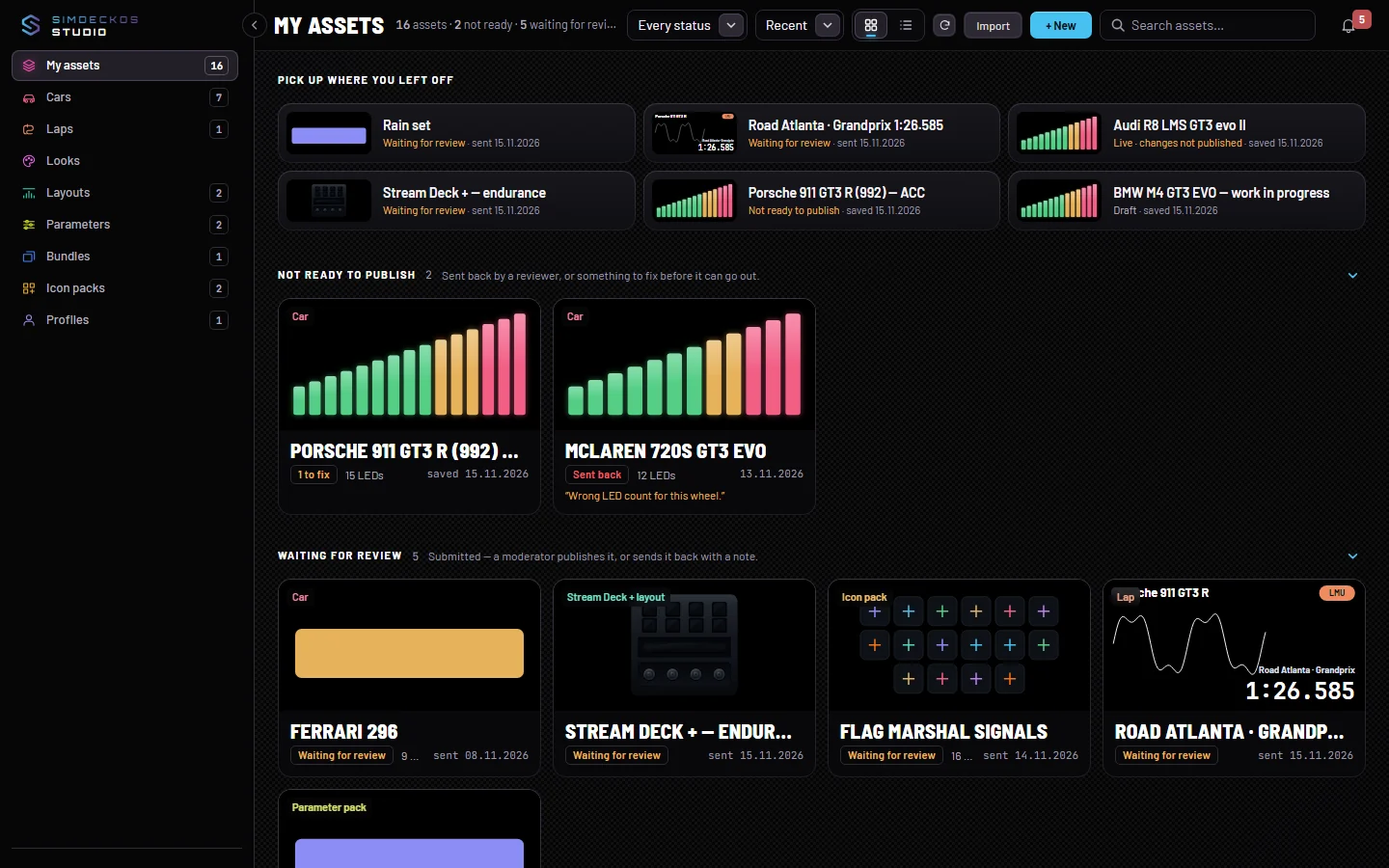
Everything you make or import lands in My assets, sorted by kind. It is saved privately: nobody else sees it until you submit or publish.
- Open Workspace, then the kind you want to make: Cars, Looks, Parameters or Profiles.
- Choose New, or import a file exported from the plugin. Layouts start in the plugin: build one on the device, then Layouts ▸ Export, and bring the file here to name and publish it.
- Each asset says its state in words: Drafts, Waiting for review, Live, or Live · changes not published.
Get it onto your rig
Two ways, depending on whether it is just for you or for everybody.
Straight to your garage
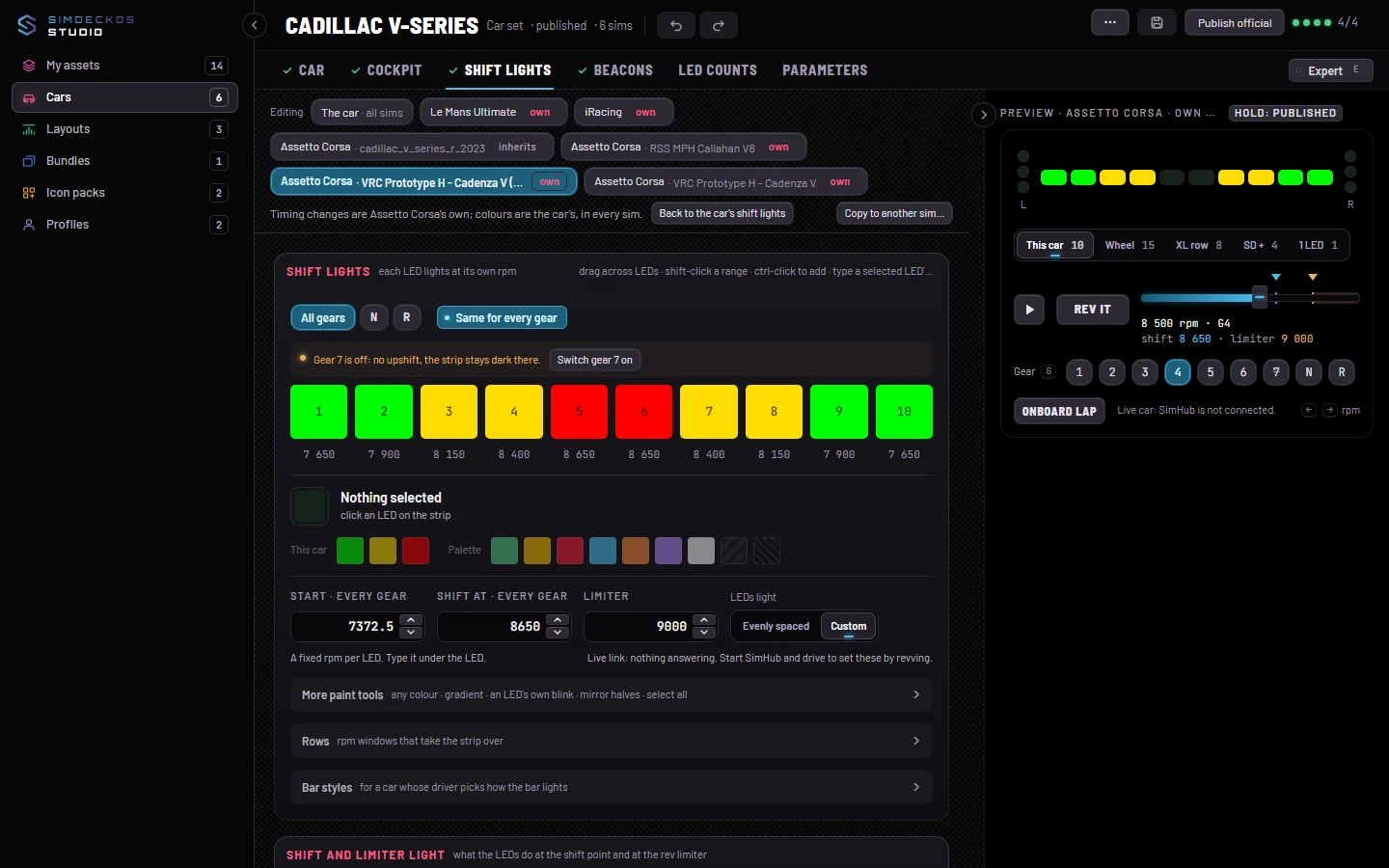
In Car Lab, with the Studio live link on in the plugin (Settings ▸ Diagnostics ▸ Studio live link), choose Install to my garage. The working set goes into your garage as a draft, unsaved edits included. Sweep then runs the plugin’s 10-second shift sweep, so the wheel shows what you just sent.
Through the Library
- Submit the asset for review (see Publish and review). It is Waiting for review: a moderator publishes it, or sends it back with a note.
- Once it is live, it is in the Library under your name, and every rig installs it from the plugin’s Library page.
- Save a change to it later, and it goes back to Waiting for review until a moderator approves it again. Anyone who already installed it keeps their copy.