
Cockpit
Your rig as you see it from the seat. A photo of your rig with your devices placed on it, cockpit styles (Authentic, Race, Showtime, Custom), where a car's lights go, and cues that sweep across the whole rig.
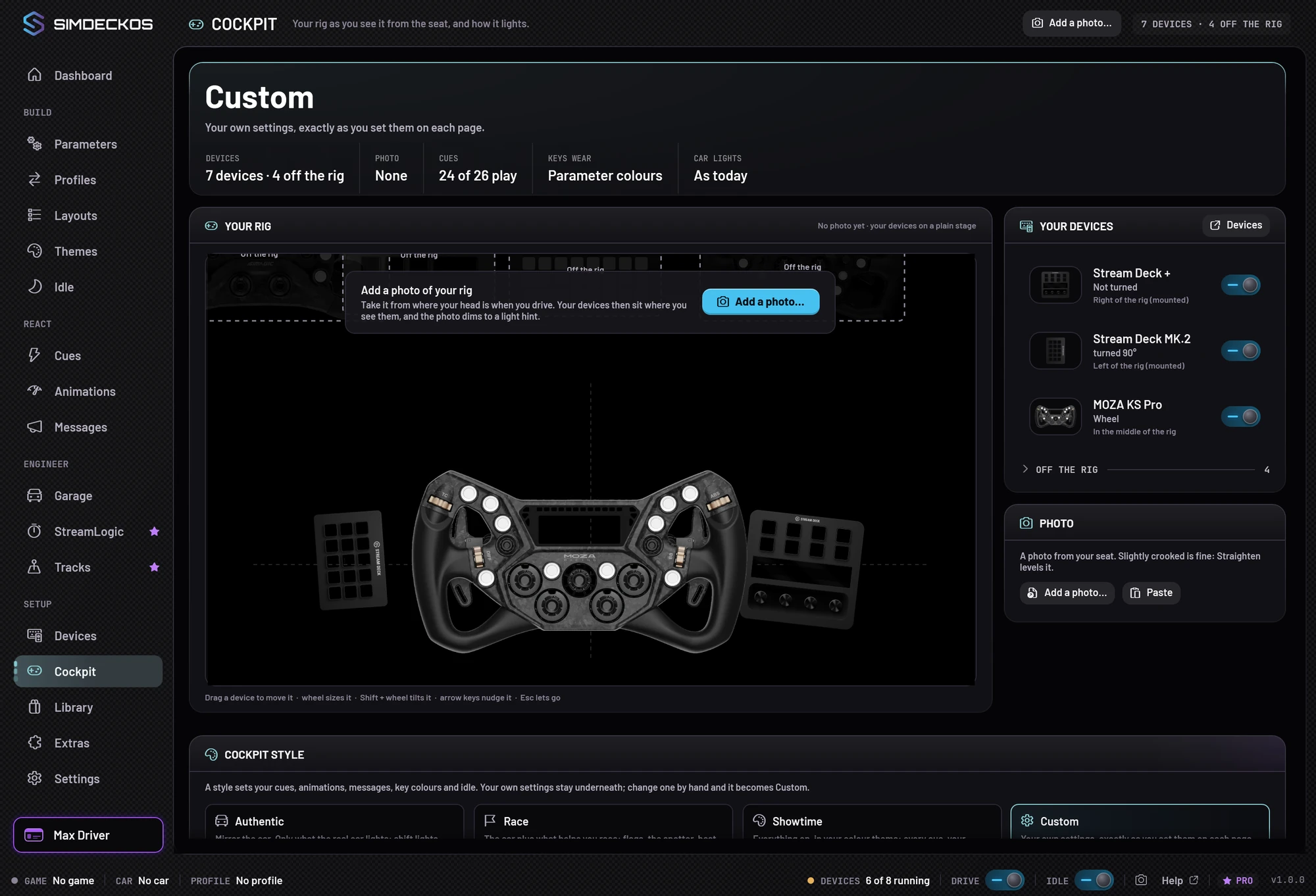
The Cockpit page shows your rig as you see it from the seat, and decides how the whole rig lights. It has three parts:
- A photo of your rig with your devices placed on it.
- A cockpit style for the whole rig.
- Where car lights go: which device shows each kind of light from a car.
Plans. The photo, placing your devices and where car lights go are free. Cockpit styles are part of Pro; on Club, every page plays your own settings.
Add a photo of your rig
- Take a photo from where your head is when you drive.
- On Cockpit, choose Add a photo…. You can also drop a file on the canvas or paste one with Ctrl+V. The plugin reads JPEG, PNG, BMP, TIFF, HEIC and WebP.
- The Straighten window opens:
- Level it: turn the photo, up to 15° either way, until the rig sits level.
- Square it: drag the four corners onto something square on your rig, such as the monitor or the frame of a deck.
- Choose Apply. A slightly crooked result is fine.
- Place each device where it sits (below).
PHOTO STRENGTH sets how much of the photo shows under your devices. Replace…, Paste and Remove photo are on the Photo card; your devices keep their places when you remove the photo.
The photo is kept as a smaller copy in SimDeckOS’s own folder on your PC. It isn’t part of your settings or your cloud backup.
Place your devices
Your devices appear on the canvas as their real outlines.
- Drag a device to move it.
- Scroll to size it.
- Shift + scroll to tilt it.
- Arrow keys nudge it.
- Esc lets go.
In Your devices, a selected device also has SIZE and TILT sliders and Put back.
On the rig decides whether a device belongs to the rig. Switch it off for a device that sits elsewhere: it keeps working, but no car light lands on it. You can also right-click it on the canvas and choose Take off the rig.
To add, rename, turn or mount a device, use the Devices page.
Cues across the whole rig
Once the photo is straightened and at least two devices that play cues are placed on it, cues stop playing on each device separately. The start, stop, cockpit and race cues travel across the rig as one wave, following where each device really sits, for example deck, then wheel, then deck. Idle cues use the whole rig as one screen too.
There is no switch for this; placing the devices is enough. In game, the start, stop and cockpit cues play on every plan; the race cues need Pro.
Cockpit style (Pro)
A cockpit style sets your cues, animations, messages, key colours and idle for the whole rig, in one choice.
| Style | What it does |
|---|---|
| Authentic | Mirrors the car: only what the real car lights, its shift lights, the limiter and its beacons. Engine start and stop cues only; no animations; only the Flags message. Keys keep their parameter colours. Idle is a slow breath, with the wheel dark. |
| Race | The car plus what helps you race: the engine, flags, the spotter, best laps, pit and fuel. Only the animations that show a state. Parameter colours stay. Calm idle cues only. |
| Showtime | Everything on, in your colour theme: every cue, your animations and messages, and Theme on everything. Car lights go to every device that can show them. |
| Custom | Your own settings, exactly as you set them on each page. |
Each tile lists what it would change on your rig before you pick it.
A style never overwrites your settings. It sits on top of them as a layer:
- If you change something the style decides, the style becomes Custom · from Race, for example. Back to Race drops your changes and runs the style again.
- If Pro ends, the style rests and every page plays your own settings, untouched.
The style is one choice for the whole rig. Cars and profiles don’t carry their own.
Where car lights go
A car’s lights sort into kinds: its shift lights, its side lights, its dash beacons and its other lights. This card decides which of your devices shows each kind. You set it once, and it applies to every car.
| Row | What it is |
|---|---|
| Shift lights | The rev lights. |
| Side lights, left / right | The lights beside the wheel’s screen. |
| Dash beacons, left / right | Warning lamps such as TC, ABS or the pit limiter. |
| Other lights, left / middle / right | Not lit yet. |
For each row, choose:
- Auto: where the car has it, on your rig.
- All that fit: every device on the rig that can show it.
- Pick devices…: the devices you choose.
Hover a row to outline its devices on the canvas.
Auto dash beacons light only under a style that mirrors the car (Authentic or Race). A route you set by hand works in any style, Custom included.
Which side a device is on
SimDeckOS decides each device’s side like this:
- The device’s Mounted setting on Devices, if you set one.
- Otherwise, where the device sits on the photo: left, middle or right third.
- Otherwise, the centre.
Where the lights land:
- Shift lights go to the wheel, or to every shift-light strip.
- Side lights go to the wheel’s side LEDs.
- Dash beacons go to the devices on that side, as beacon keys or as a beacon overlay. The overlay is Pro.
To see one car’s lights on your rig, open the car in the Garage and look at Beacons ▸ On your rig.