
Getting started
Race Control is a launcher for Assetto Corsa. It finds your game, brings over what Content Manager already knows, and gets you from opening it to driving in a few clicks.
What you need
- Windows 10 or 11. Race Control is a desktop app for the PC you race on.
- Assetto Corsa from Steam. Steam has to be running when you press Drive.
- Custom Shaders Patch (CSP), optional. It adds features and settings to the game, and its main releases are free. Without it, weather and lights fall back to Kunos.
- Content Manager, optional. If you have it, Race Control can import from it. Its files are only read, never changed.
- The SimDeckOS plugin, optional. Race Control works fully without it. With it, your deck and wheel buttons start sessions.
Get Race Control
Race Control isn’t out yet. Leave your email and we’ll tell you when it is. Race Control is free.
Notify me about Race Control. One email when it’s out, nothing else.
Notify meThe first start
Race Control looks for Assetto Corsa through Steam: Steam’s own folder and every Steam library on the PC. Then it opens Welcome to Race Control: “Your car and track are ready. Tell us who’s driving.”
Assetto Corsa
The first row shows where your game was found and how many cars and tracks it has. If it says Not found, install Assetto Corsa through Steam and start Race Control again. Settings › Race Control › Game folders shows the folders it found.
Your driver name
Your name and country go on the grid, in results and on online servers. Type them and choose Save.
Content Manager
If Content Manager is on the PC, the sheet says Found, not imported. Choose Choose what to import… and tick what comes over:
- your driver name and nationality;
- recent and favourite servers;
- Quick Drive presets, saved as sessions you can start from Drive;
- assists, video and Custom Shaders Patch presets, race grids and track states.
Race Control shows what arrived. Content Manager keeps working as before.
Wheel, pedals and field of view
Set up… walks you through wheel rotation, full pedal travel, a field of view that fits your screen and a force feedback check. It takes two minutes, and every step is optional.
Car pictures
Race Control shows each car as a cut-out picture on its card. Car pictures… opens the Car pictures sheet on every car. Its recommended way is Race Control’s own 3D render: it needs neither Content Manager nor any preset, and it runs in the background while you keep using Race Control.
Choose Let’s drive when you’re done, or Set up later. The Welcome stays in Settings › Race Control.
Your first drive
Race Control opens on Drive › Quick drive. The top row picks the mode: Practice, Race, Weekend and more. Under it, six tiles set up the session; open one to change it:
- Car and Track, with the skin and the layout;
- Conditions: weather, temperature, time and grip;
- Opponents: how many AI and how fast;
- Assists and Rules.
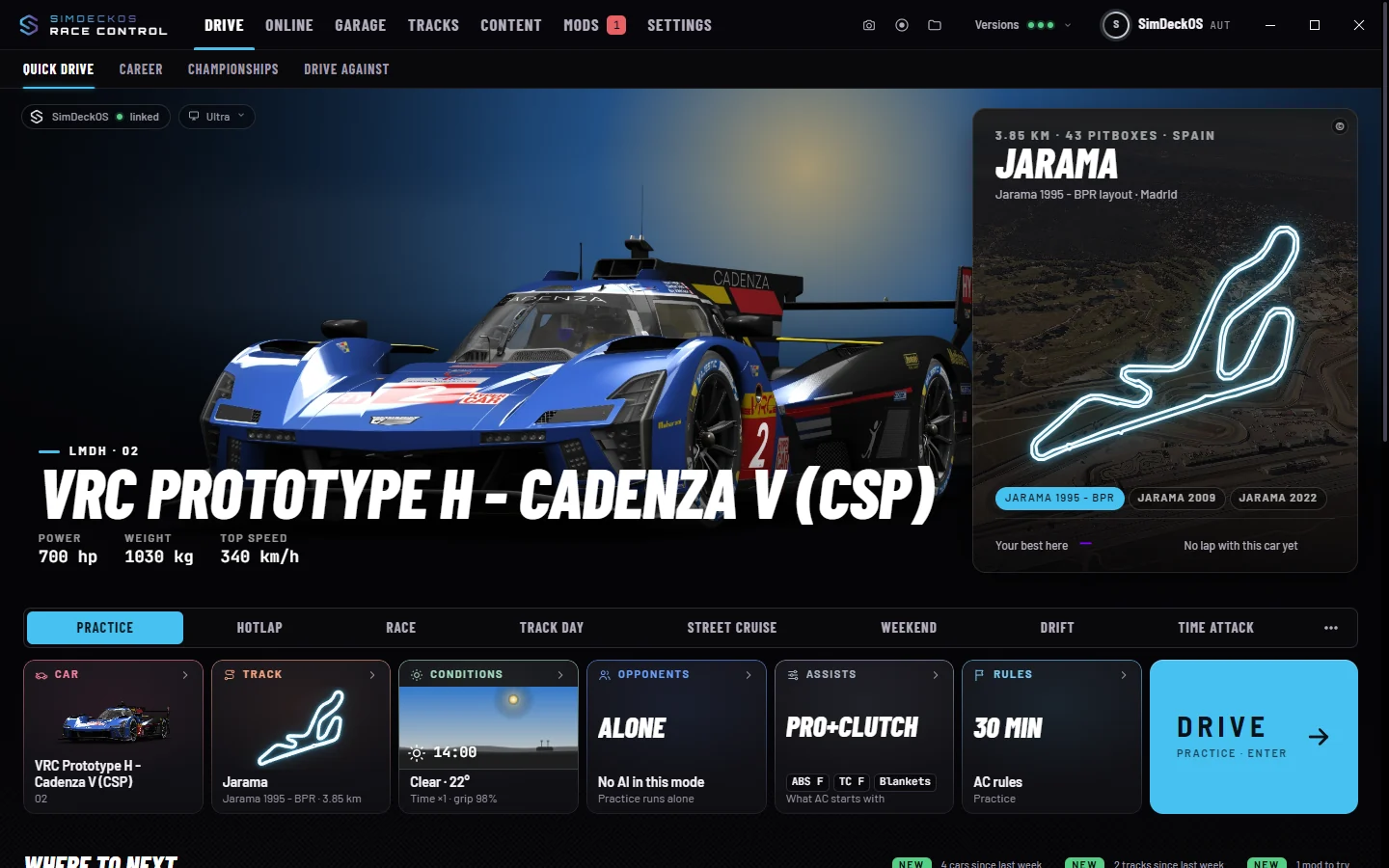
Press Drive, or Enter. Before the game starts, Race Control checks that the car and track are installed and that Steam is running. If something is missing, the Drive key says what and how to fix it, for example “Start Steam, then press Drive.”
When the session ends, Race Control comes back with your result and your best lap. Quick drive has the rest.
Keys
Ctrl K searches all of Race Control: pages, cars, tracks and settings. Before you type, it lists what you opened last, then Drive. ? shows every keyboard shortcut.
Link SimDeckOS
SimDeckOS is the SimHub plugin for your decks and your wheel. Race Control links to it by itself, on your own PC; there is nothing to sign in to.
- Install the SimDeckOS plugin. Until you have it, the SimDeckOS chip on Drive links to its page.
- Start SimHub. While it isn’t running, the chip says “SimDeckOS installed · start SimHub”.
- Once SimHub runs, the chip says linked, and the top bar shows your SimDeckOS plan.
Linked, your deck and wheel buttons can start and rejoin sessions, the deck follows the car you drive, and lap colours follow your SimDeckOS theme.